
Your First Day on the Pipeline
This tutorial gets you working in the lead pipeline using a real demo with 20 prepared leads. You’ll log in, read what the board is telling you, take action on a breached lead, and watch the system record it. Plan on 15 minutes.
By the end you will know:
- How the 8-column Kanban maps to a lead’s life
- What the temperature chip, SLA banner, and flag chips on a card mean
- How a contact attempt moves a lead from one column to the next
- The difference between an event written by Scribe (the system) and an event you logged yourself
Before you start
Section titled “Before you start”Open the demo in your browser:
https://app.homestar.ink/admin/leads/board
Click the Admin demo login button on the sign-in page. You’ll land on the lead pipeline. The data is synthetic — anything you click, log, or change here doesn’t touch a real client. Treat this as your sandbox; come back any time.
Read the board first, then act
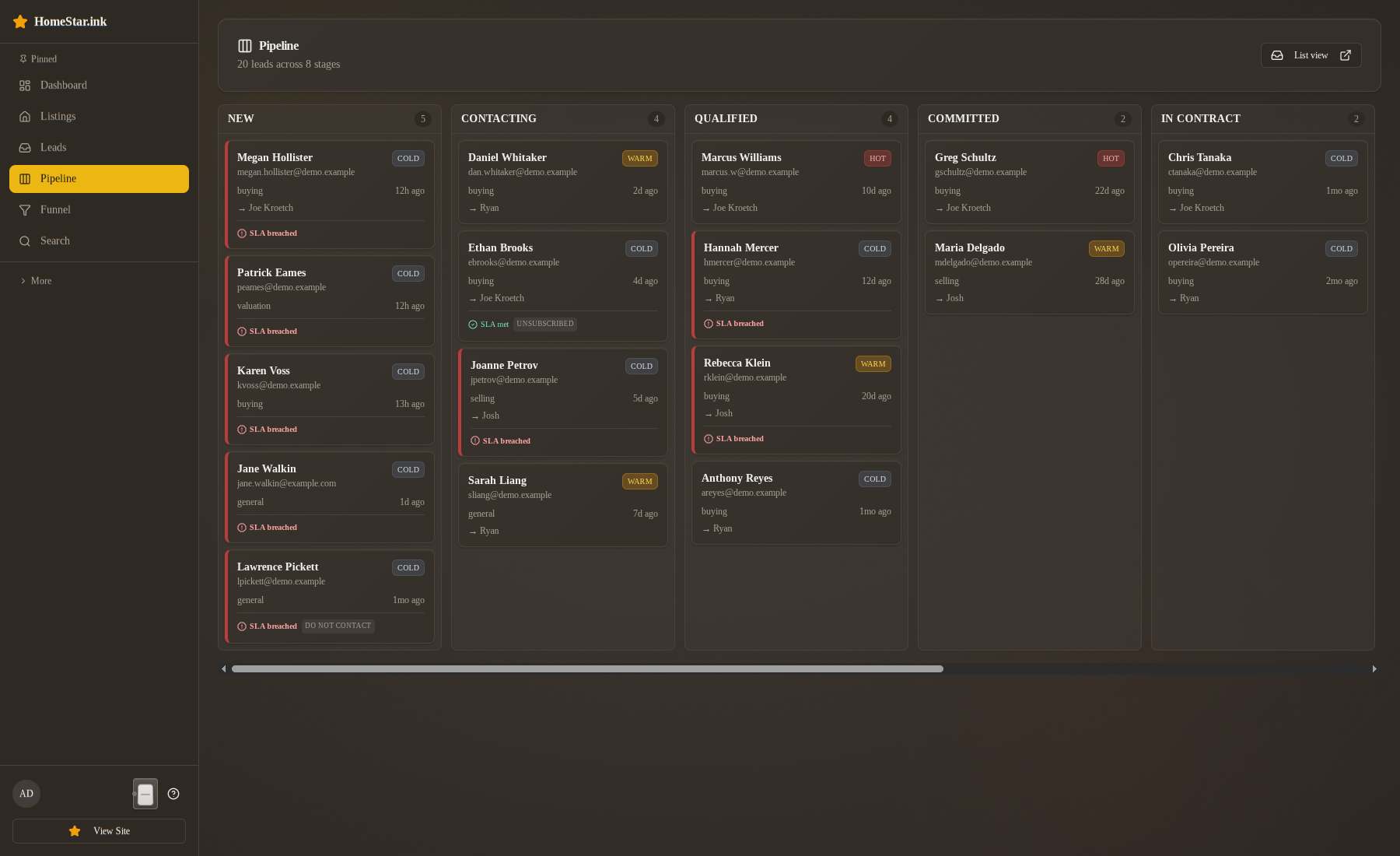
Section titled “Read the board first, then act”The board has 8 columns left to right, in the order leads naturally move through:
| Column | What it means in plain terms |
|---|---|
| NEW | Inquiry just arrived. No one has tried to reach them yet. |
| CONTACTING | First outreach made. Waiting on a response. |
| QUALIFIED | Motivated and ready to look at homes — searching, touring, or close to writing. |
| COMMITTED | Buyer’s agreement signed. They’ve chosen to work with you. |
| IN_CONTRACT | Offer accepted; transaction in escrow. |
| CLOSED | Deal funded. Keys handed over. |
| ARCHIVED | Went quiet long enough to set aside. Not deleted — they can come back. |
| TRASHED | Bad data — bogus number, junk email, duplicate. Also not deleted — fix the contact info and the lead re-enters NEW. |
Look at one card before you click anything. A card shows you four things at a glance:
- Name + headline — who the lead is and what they want
- Temperature chip — Hot, Warm, or Cold based on how engaged they’ve been
- SLA indicator — for leads in NEW, a chip counts down the 5-minute response window live (
3m 41s left) and turns red with a red left border once it’s missed (12m 06s over) - Flag chips — DNC, Unsubscribed, Do-Not-Email, etc. These are communication preferences you need to respect
That’s the daily glance. The cards tell you where to spend your next ten minutes without opening a single one.
Step 1 — find a lead that needs you right now
Section titled “Step 1 — find a lead that needs you right now”Scroll the NEW column. You’re looking for Lawrence Pickett.
Lawrence’s card stands out for three reasons. Take a moment with each before clicking:
- Red border — his SLA window has already elapsed. The clock started when his inquiry hit the system; nobody has logged contact since.
- DO NOT CONTACT chip — there’s an active
dncflag on the record. Whoever takes action on Lawrence needs to know this before they dial. - Cold or Warm temperature chip — he hasn’t been on the site engaging with listings recently, so his score is low.
Click the card to open the detail page.
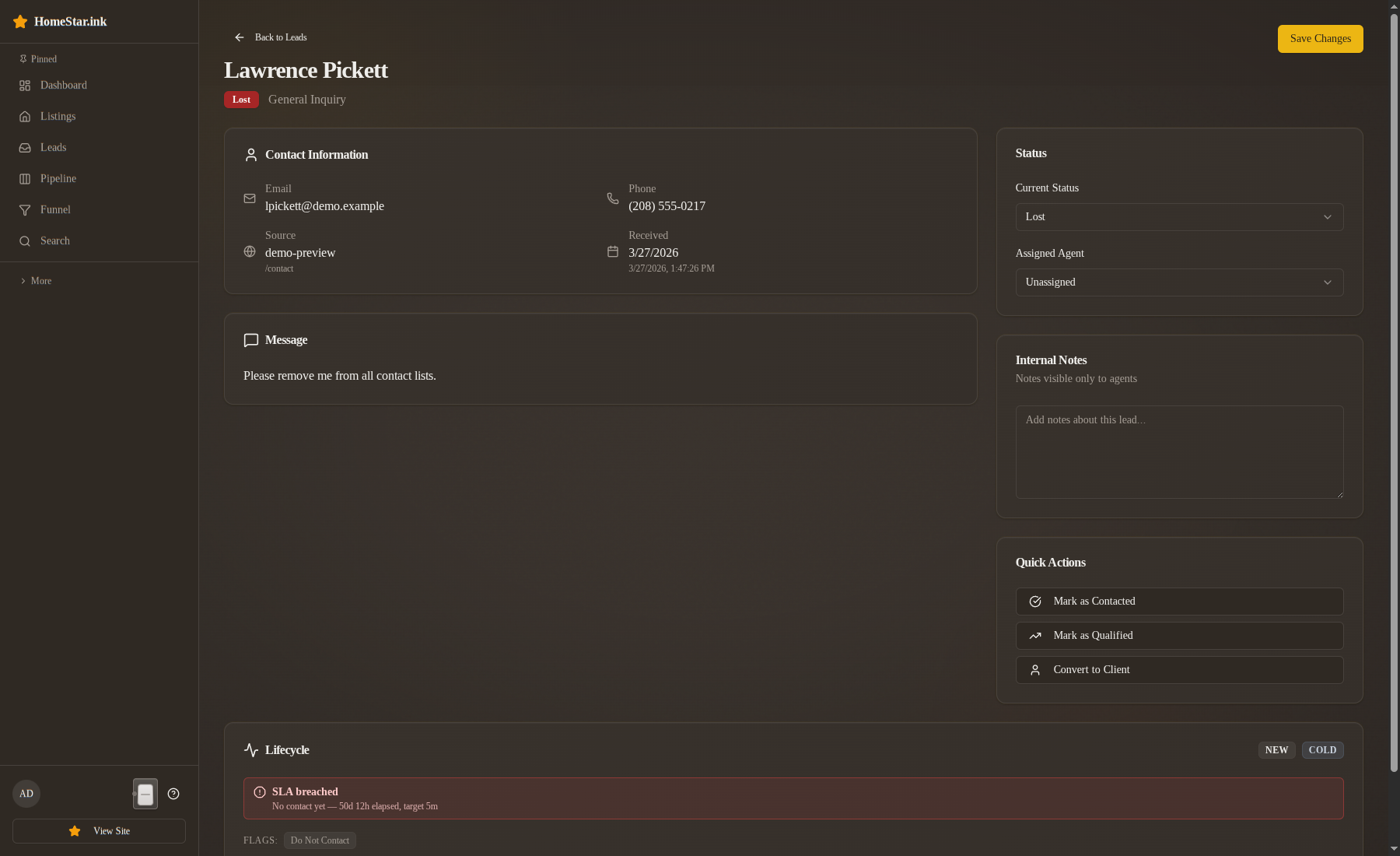
The detail page has a Lifecycle card at the top of the right column: the stage and temperature badges, the response clock (here “Response window missed” with how far past target), a red warning line for the Do Not Contact flag, and the Next step buttons. Below the lead’s details on the left is the Timeline, oldest first. Lawrence’s timeline likely has one or two entries: his inquiry (Lead received) and the routing that assigned him (Agent assigned).
Step 2 — log a contact attempt
Section titled “Step 2 — log a contact attempt”In a real workflow you’d resolve the DNC question first. For this tutorial, assume you’ve cleared it (Lawrence reset the flag himself last week and a teammate forgot to update the record). You’re going to log a phone outreach.
- On the detail page, under Next step in the Lifecycle card, click Log contact attempt.
- Under How, pick Call.
- Add a short note: “Left voicemail, mentioned the inquiry on the West End property.”
- Click Log contact attempt.
Two things should happen:
- Lawrence’s card moves from the NEW column to CONTACTING.
- A new row appears at the bottom of the timeline.
Step 3 — read the timeline you just changed
Section titled “Step 3 — read the timeline you just changed”Look at the timeline now. You should see something like this:
─ Earlier ──────────────────────────────────────  Scribe — Lead received
─ Earlier ──────────────────────────────────────  Scribe — Agent assigned
─ Just now ─────────────────────────────────────  You — Contact attempted   New → Contacting   [Call]  "Left voicemail, mentioned the inquiry on the West End property."
Two actors appear in the timeline: you (named) and Scribe.
Scribe is the system. When something happened without a person doing it (the lead arriving from the contact form, routing picking an agent, a re-route when an archived lead is re-engaged) Scribe is the attributed actor. Your name is attributed to anything you did by hand. If you can’t remember whether something was an automatic side-effect or a deliberate action, the timeline tells you which by who wrote it.
This separation matters because the timeline is the canonical history of the lead. The current column on the board is a projection of that history. If the board ever surprises you (“why is this lead here?”), the timeline answers it.
Step 4 — look at a hot lead
Section titled “Step 4 — look at a hot lead”Scroll the QUALIFIED column and find Marcus Williams. His card has a Hot temperature chip with a high number next to it.
Open his detail page. His timeline is longer than Lawrence’s, and the Properties Viewed panel shows favorites saved, multiple property views, and a tour request. Each of those is a signal the temperature scorer picked up. The score is high because Marcus is acting like someone close to writing an offer.
State and temperature are independent. Marcus is in QUALIFIED (a state — he’s pre-approved and shopping) and he’s Hot (a temperature — he’s engaging heavily right now). Another lead could be in QUALIFIED and Cold; their behavior would tell you they’ve stalled and need re-engagement, not another tour invite.
See the why state and temperature are separate explanation for the longer version of this argument.
Step 5 — respect a flag
Section titled “Step 5 — respect a flag”Go back to the board and find Ethan Brooks in CONTACTING. His card has an Unsubscribed chip — but no DNC chip.
Composition matters here. unsubscribed means email marketing is off. It does not mean you can’t call him, text him, or send a personal one-off email about a property he asked about. dnc is the all-channels-off flag. If Ethan had both, all automated outreach would be off and personal contact would need a logged reason.
Open Ethan’s detail page and scroll to Communication preferences at the bottom of the Lifecycle card. The Unsubscribed switch is on. If Ethan calls and tells you he’s resubscribed, you’d flip it off; the record keeps both the original set and the clear, so the audit trail is intact.
For the full table of flags and what each blocks, see communication flags reference.
What you’ve done
Section titled “What you’ve done”You’ve used the three pieces of vocabulary the rest of the docs assume you know:
- State — where a lead is in the buying process (one of 8 canonical columns)
- Temperature — how engaged they are right now (Cold / Warm / Hot, computed from behavior)
- Flags — communication preferences (DNC, Unsubscribed, channel-specific blocks)
You’ve also seen the timeline + Scribe pattern: every change is logged with an actor, and “the system did it” is a first-class answer.
Where to go next
Section titled “Where to go next”| If you want to… | Read… |
|---|---|
| Look up exactly which transitions are valid | State machine card |
| Understand why a particular lead is Hot or Cold | Temperature signals |
| Know exactly what each flag blocks | Communication flags |
| Read the longer argument for the two-axis design | Why state and temperature are separate |
Come back to the demo any time. Lawrence, Marcus, and Ethan are persistent — the seed script re-creates them when the dataset is refreshed. Treat the demo URL as a permanent practice sandbox.